Showing posts with label customizing windows. Show all posts

Tuesday, 27 December 2011

Use hidden wallpapers and themes (win 7).


Windows 7 contains many hidden wallpapers and themes .
                Hidden, though, are background scenery and themes from other English-speaking countries -- Australia, Canada, Great Britain and South Africa. Normally, you can't access those backgrounds or themes, but there is a simple way you can install and use them:::::::::::::::::


1. Type these in Start menu type -----C:\Windows\Globalization\MCT   and press Enter. (Note:Win 7 must be installed in c drive ,otherwise  use that letter instead.)
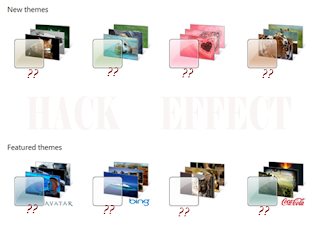
2. Win Explorer will launch and show you a list of subfolders under C:\Windows\Globalization\MCT: MCT-AU, MCT-CA, MCT-GB, MCT-US, and MCT-ZA. 

Here each subfolder has wallpapers for a specific country:  

AU for Australia, 
CA for Canada, 
GB for Great Britain, 
                                                US for the United States, and
                                                ZA for South Africa.

  You can use any theme or background from any of the countries , go into its Theme folder, for example, C:\Windows\Globalization\MCT\MCT-ZA\Theme. Double-click the theme you see there (for example ZA).


3. That will install a shortcut to the theme and wallpapers in the Personalization section of Control Panel.

You can now use them as you would any other theme or background, by right-clicking the desktop, choosing Personalize, and choosing a background or theme. They will be listed in their own section.


 THANKX FOR READING!

Speed up Windows Shutdown.


 Guys ! Wanna increase your shutdown speed .??
           This is a good trick for those who want to    increase  the speed of windows shutdown (xp)


1.Start Regedit.
2.Navigate to HKEY_LOCAL_MACHINE/SYSTEM/CurrentControlSet/Control.
3.Click on the "Control" Folder.
4.Select "WaitToKillServiceTimeout"
5.Right click on it and select Modify.
6.Set it a value lower than 2000 (Mine is set to 200).

AND YOU ARE DONE!

Note: that making incorrectly changes to the registry may damage your system; please back up any valued data on your computer.


Friday, 16 December 2011

Remove shared documents folder from My Computer:

Hey guys do you want to remove the shared documents folder from My computer ??Some don't like my shared documents folder option. If you are one of that, here is a trick to remove it.


STEPS ::::::::


Open registry editor by going to START-RUN and entering regedit.
Once you are  in registry, navigate to key HKEY_LOCAL_MACHINE \ SOFTWARE \ Microsoft \ Windows \ CurrentVersion \ Explorer \ My Computer \ NameSpace \ DelegateFolders You must see a sub-key named {59031a47-3f72-44a7-89c5-5595fe6b30ee}. If you delete this key, you have effectively removed the my shared documents folder.


Wednesday, 14 December 2011

Create virtual drives in your computer.


You can create Virtual Drives in your Computer. Now you can access your Favorite Folders as a drive in My Computer.This is an easy and awesome trick.

STEPS:::::::::::


  • Start >>>>>>> Run.
  • Type cmd and hit Enter.
  • "Command Prompt" will open .
  • Type subst Z: E:\folder and hit Enter key.
  • You can replace Z: with your desired New Drive Letter (Except existing Drive letters)!
  • You can replace E:\folder with the path of your favorite folder !
  • Now, type exit


This will create a new drive .When you open this , it will open your folder !!!


NOTE------  On Restart the Virtual Drive Disappears.

Monday, 3 October 2011

Change your logon screen background

Today I will show you to change the logon screen background..Just follow these simple steps....
  1. Click the Start button and select “Run”
  2. now type regedit and click ok
  3. then navigate to HKEY_USER then .DEFAULT then CONTROL PANEL then DESKTOP and then from desktop option double click on the WALLPAPER
  4. Enter the full path and filename of the .bmp image that you want to use as background (the image must be in .bmp format)
  5. Click “ok” and close the registry editor
                AFTER THAT RESTART YOUR COMPUTER

Tuesday, 19 July 2011

Remove the Username and picture from Windows XP New Start Menu


The User account picture can be removed by turning off the Welcome Screen. Or, by switching to Windows Classic theme. Follow the method described in this article if you want to remove the username and picture from the Start Menu, without disabling the Welcome Screen and Windows XP Theme.

For those who want to remove the user name and user account picture from Start Menu, in order to have a blank blue panel at the top, try this:
Start Windows Explorer and go to this folder:

C:\Documents and Settings\All Users\Application Data\Microsoft\User Account Pictures

From that folder, rename the BMP file which corresponds to your user account.
( For example, if your username is Robert, rename Robert.bmp to old_Robert.bmp )
Next, rename the following folder:

C:\Documents and Settings\All Users\Application Data\Microsoft\User Account Pictures\Default Pictures

to something else, say...

C:\Documents and Settings\All Users\Application Data\Microsoft\User Account Pictures\No_Default Pictures
To remove the user name, follow these steps

Start regedit.exe and navigate to the this key:

HKEY_CURRENT_USER \ Software \ Microsoft\ Windows \ CurrentVersion \ Policies \ Explorer
In the right-pane, set NoUserNameInStartMenu value-data to 1

Close Regedit.exe and restart Windows.

You'll end up with a blue space at the top of the Start Menu.

Twitter Delicious Facebook Digg Stumbleupon Favorites More

 
Design by Bahniman Das | Bloggerized by The Hack Effect - Join my group in facebook | THE HACK EFFECT
